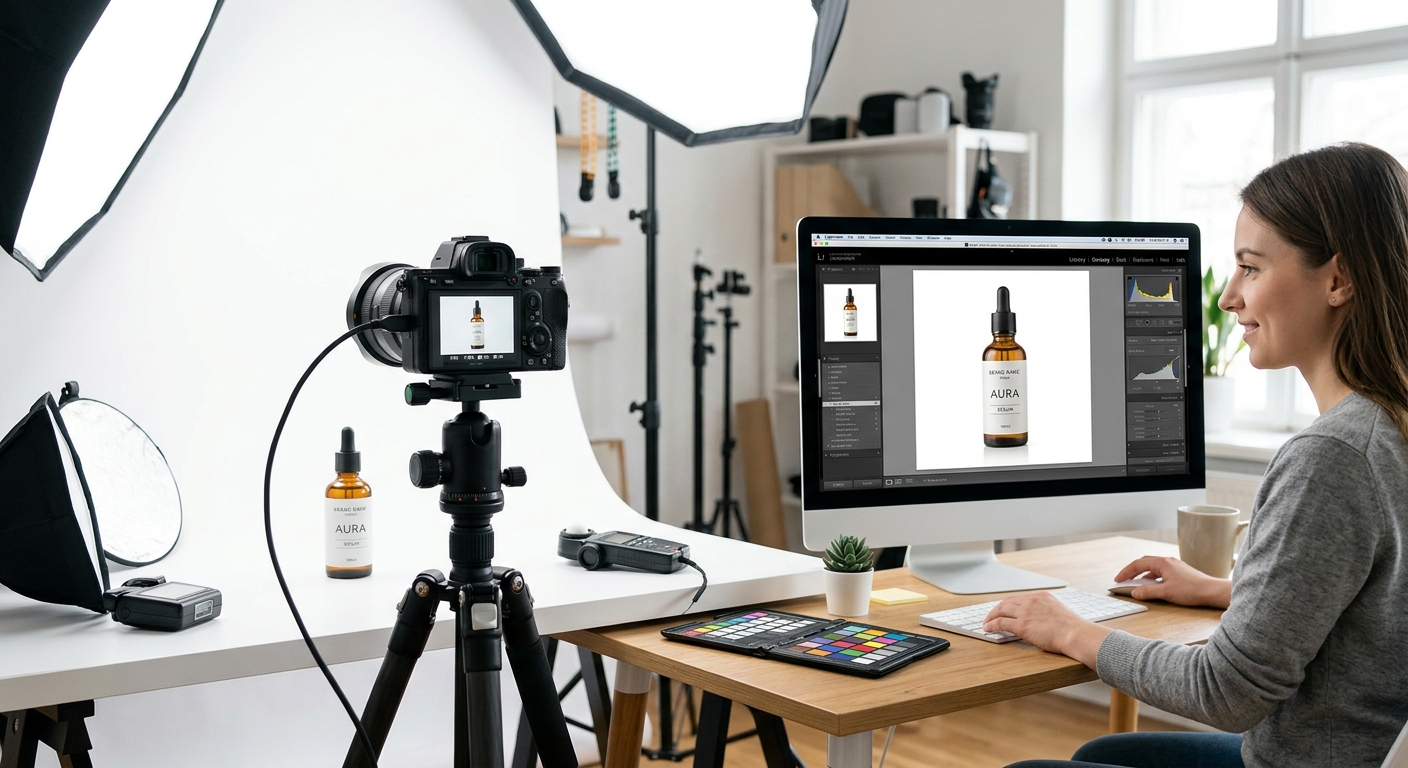
A crooked crop or a gray halo can make a good product look carelessly presented. Buyers cannot pick up your item, turn it over, or check its finish. Your photos carry that job. A clean white background keeps attention on the product, but getting there takes more than deleting the original backdrop. You also need believable edges, consistent spacing, accurate color, and an export that keeps small details readable.
You can handle this workflow with an online background remover and a basic photo editor. Start with one product photo, get the result right, then repeat the same choices across your listings.
Your Clean-Photo Workflow: Start with a sharp, evenly lit image. Remove the background, inspect the product edges, and place the cutout on a solid white canvas. Match the crop and spacing across related products. Keep an editable copy before exporting a finished JPG. Compress that export gradually, then inspect fine details and preview the image at listing size. Check your selling platform’s current requirements before uploading, especially for the main product image.
Start With a Photo That Preserves Product Detail
Background removal works best when the original image clearly separates the product from its surroundings. Place the item against a simple backdrop that contrasts with its edges. A white ceramic mug may be easier to separate from light gray than from bright white. A dark bag needs enough light to reveal its outline and straps.
Use soft, even lighting. A window with indirect daylight can work, especially with a white board opposite the window to reflect light into darker areas. Avoid mixing daylight with a warm household lamp. That mixture can leave different color casts across the same product.
Keep the camera steady and check focus before taking the final shot. Small lettering, stitching, and surface texture should look clear in the original. Editing cannot reliably recover detail that motion blur or missed focus has erased.
Leave room around the item. Tight framing can cut off handles, corners, or packaging flaps before you even begin editing. Clean dust and fingerprints from the product itself, too. A minute spent wiping a glossy surface can save several minutes of retouching.
Remove the Background Without Losing Product Features
Upload your best original photo to a background removal tool. Use the highest-quality source available, rather than a screenshot or a copy downloaded from a messaging app. Those copies may already contain compression damage.
Review the first cutout before adding white behind it. Automatic removal can mistake small product features for background, particularly around narrow straps, open handles, lace, or reflective edges.
If the editor offers an erase brush and a restore brush, work in small sections. Restore any missing product areas first. Then erase leftover background. Use a smaller brush near detailed boundaries so you can control where the cutout begins and ends.
Pay attention to openings inside the product. The space inside a mug handle should show the new background. The same applies to gaps between chair legs or holes in a decorative object. A clean outer outline does not guarantee that these inner spaces were removed correctly.
Save a transparent working copy when your tool allows it. That gives you a reusable cutout for later adjustments without repeating the removal process.
Clean the Edges Before Adding a White Canvas
Inspect the cutout against both a light and a dark temporary background. A pale fringe may disappear against white but stand out against charcoal. Dark remnants from the original scene are often easier to spot against a light color.
Zoom in enough to judge the boundary, then return to normal viewing size. You want an edge that looks natural in the finished listing. A perfectly hard outline can make fabric or textured materials look clipped.
- Check for halos: Remove thin bands of the original backdrop around the product.
- Restore fine features: Look for missing cords, handles, bristles, stitching, and narrow corners.
- Inspect interior gaps: Clear background remnants from openings within the item.
- Preserve material texture: Keep real fibers and irregular edges that belong to the product.
- Review reflective areas: Confirm that bright highlights have not been erased as background.
Use edge softening sparingly. A slight adjustment may reduce a jagged outline, but too much creates a blurry border. If your editor offers feathering, apply a small amount and inspect the result at normal size.
Transparent glass and translucent packaging need extra care. Their appearance includes light passing through the material, not just an outer shape. If removal leaves them looking solid or creates distracting patches, try a better source photo taken against a clean white backdrop.
Place the Product on Solid White
Create a canvas and set its background to pure white. In an editor with a color field, use #FFFFFF, which corresponds to RGB values of 255, 255, and 255. Place the cleaned cutout above that background.
A backdrop that looked white in the original photo may actually contain gray areas, warm tones, or uneven shadows. A solid white layer gives you a consistent base. Check the corners and the space around the product to make sure the layer covers the entire canvas.
Keep the product’s real color intact. Brightening the entire image until the background turns white can wash out pale materials and remove detail from highlights. Adjust the product separately if it needs exposure or color correction.
A restrained contact shadow can help an item feel grounded when the listing permits it. Keep it close to the base and consistent with the lighting. Avoid a heavy floating shadow that distracts from the shape. Check the current requirements for your marketplace and image role before adding decorative effects.
Match Cropping and Scale Across Your Listings
Choose a canvas shape based on where the image will appear. A square can be a useful working format for a product grid, but confirm the destination’s requirements before making it your standard.
Set a repeatable margin around the product. The item should be large enough to read clearly without crowding the canvas. Include its full shape, with breathing room around the tallest and widest points.
For related products, compare images side by side. Similar items should occupy a similar amount of space. A row of matching bottles looks uneven if one fills almost the entire frame while another appears much smaller.
Use the product’s visual weight to guide placement. A bag with a handle extending upward may look off-center even when its bounding box is mathematically centered. Judge the body of the item as well as its outer limits.
Save a reusable canvas or template after you settle on the crop. Keep its dimensions, alignment guides, and background color consistent. This makes batch preparation easier and reduces small differences between listings.
Export a Finished JPG After the Background Is Set
JPG is a useful export choice for a finished product photograph with a solid white background. It supports photographic color and lets you balance image detail against file size. Since the white background is already part of the finished image, you no longer need transparency in that delivery copy.
If your finished file is in another format, a JPG converter can create the JPG version before you work on compression. Check that the white background is present before converting. A transparent file may be flattened differently depending on the tool.
Keep your transparent cutout and editable master separately. JPG does not preserve transparency, and its compression can discard image information. Use the master whenever you need a new size or crop instead of repeatedly editing and saving an existing JPG.
PNG remains useful for a transparent working asset. It can also suit graphics where sharp text or flat shapes matter more than a small photographic file. For your completed white-background product photo, choose the delivery format accepted by the listing destination.
Set Export Dimensions and Color for the Destination
Check the upload requirements before choosing the final pixel dimensions. Image rules can differ by marketplace, category, and placement. A main listing image may have different requirements from a secondary image or a store banner.
Export from the largest clean master you have. If you need a smaller delivery image, resize a copy. Enlarging a small source adds pixels but does not recreate missing product detail.
Use sRGB for a straightforward web-photo workflow when your editor offers a color-profile choice. Convert to that profile through the export controls rather than simply removing an existing profile. Then inspect the exported file for unexpected color changes.
Focus on pixel dimensions for the online listing. Changing the DPI field alone does not add detail when the pixel dimensions stay the same. Give the file a clear name that identifies the product and view, such as ceramic-mug-front-white.jpg.
Compress the JPG Without Sacrificing Useful Detail
Start with a high-quality JPG export and reduce file size gradually if needed. Compression controls vary between tools, so a quality value in one editor may produce a different result in another. Judge the actual output.
Look closely at details buyers use to assess the item. Labels, engraved marks, fine stitching, and textured surfaces can become muddy before the overall photo looks obviously damaged. Dark outlines against white may also develop faint blocks or ripples.
Compare the compressed file with your master at the same viewing size. If useful detail has faded, raise the quality setting. If the image still looks clean and the file meets the upload limit, keep that version.
Avoid passing the file through several compression tools in succession. Each lossy save can discard more information. Return to the master and create a fresh export when you need a different balance of dimensions and file size.
Check the Actual Export Before Uploading
Open the saved file outside the editor. This confirms that the delivered image contains the intended crop, background, and color. Review it at full size, then reduce it to a typical listing thumbnail.
- Background: Confirm that the canvas is solid white without leftover patches.
- Edges: Check for halos, missing details, jagged borders, and stray pixels.
- Framing: Make sure every product feature fits inside the crop.
- Accuracy: Compare color, shape, and visible condition with the actual item.
- Export: Verify the format, pixel dimensions, file size, and destination requirements.
- Thumbnail: Confirm that the product remains easy to identify at a small size.
After uploading, inspect the platform’s preview. Its processing may change how the image appears. If a problem shows up, correct the master and export again.
Build a Repeatable Routine for Clean Product Photos
Once one image looks right, use it as a reference for the rest of the collection. Match the background, spacing, product scale, and export choices. Review each cutout individually, because different materials and shapes need different edge adjustments.
Keep originals, editable files, and delivery copies organized. The next time you need a new crop or listing size, you can return to a clean master. That simple habit turns white-background preparation into a repeatable routine and gives buyers a clear, consistent view of what you sell.