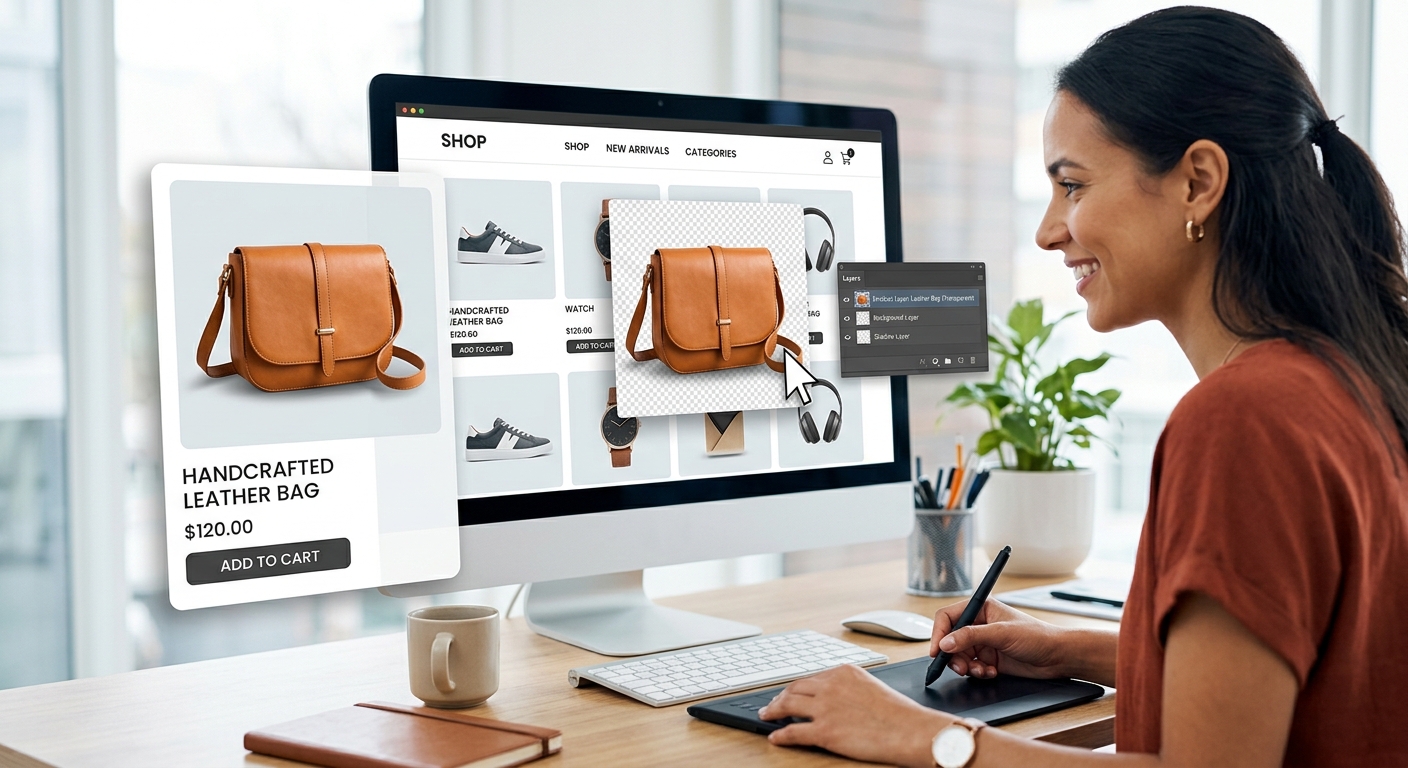
A great product can look harder to buy when the photo is cluttered. A kitchen counter, wrinkled sheet, or distracting wall pulls attention away from details shoppers need to see. Removing that background gives your product room to speak for itself. The stitching looks clearer. The shape is easier to judge. Your storefront starts to feel consistent.
A clean cutout is useful far beyond one listing image. You can place it on white, build a seasonal banner, or reuse it in an email graphic. The trick is to remove the surroundings without losing anything that belongs to the product. Here is a workable process, from taking the original photo to saving files you can actually use.
A reusable product cutout starts with a clear photo and finishes with careful edge checks.
- Photograph the entire product with soft light and visible separation from the background.
- Check edges, openings, and fine details before placing the cutout into a layout.
- Keep a transparent master file, then create separate exports for listings and promotions.
Understand What a Transparent Background Gives You
A transparent background means the empty area around your product contains no visible color. Many editors display that space as a checkerboard. The pattern is a preview aid. It should not appear in the exported image.
Transparency and a white background serve different purposes. A white background is a visible surface behind the product. Transparency lets whatever sits underneath show through. Place a transparent cutout on a white canvas, and you get a white-background image. Place that same cutout on a pale green banner, and the surrounding area becomes green.
Keep this distinction in mind when saving files. Your transparent cutout is the reusable source. Your listing image is a finished version made for a specific placement. Keeping both saves you from repeating the removal process every time you need another design.
Take a Photo That Makes Background Removal Easier
Editing cannot recover a corner that never made it into the frame. Start with the entire product visible and leave some space around it. Use the highest useful camera resolution available, and avoid screenshots or images downloaded from an existing listing when you have the original.
Choose a plain backdrop that contrasts with the product. A white mug against a white wall can be difficult to separate. A medium gray surface may give its edges more definition. Dark products often benefit from a lighter backdrop.
Soft, even light helps preserve texture without creating hard shadows. A window with indirect daylight can work. Position the product where you can see its outline clearly, then move your camera or light if glossy surfaces reflect distracting objects.
- Clean away dust, fingerprints, and lint before taking the photo.
- Support the camera or phone to reduce blur along the edges.
- Keep handles, straps, cords, and other included parts inside the frame.
- Take another angle if the product blends into its backdrop.
For reflective or translucent products, give the original setup extra attention. Glass, polished metal, and sheer fabric can carry reflections or background color into the product itself. Background removal may clear the surrounding space while leaving those internal traces behind.
Remove the Background Without Losing Product Details
Open your original photo in a background removal tool and let the automatic selection create the first cutout. Treat that result as a starting point. A clean preview at a small size can hide missing details.
Use this sequence to turn the first result into a dependable product asset:
- Check the overall shape. Confirm that the product is complete, including its base, corners, and attachments.
- Inspect the boundary. Zoom in and follow the outline around the entire item.
- Restore missing areas. Use a restore brush or selection control, if available, to bring back material removed by mistake.
- Erase leftover background. Clear visible patches around the outline and inside genuine openings.
- Preview on different colors. Test white, dark gray, and one contrasting color to reveal edge problems.
- Save a transparent master. Keep this version before adding backgrounds, text, or decorations.
Pay special attention to holes and gaps. The opening inside a mug handle should usually be transparent. Space between handbag straps may need cleaning. Background trapped between chair legs can make a cutout look unfinished, even when its outer edge is tidy.
Preserve details that help buyers understand the item. Do not erase a pale seam because it resembles the backdrop. Do not remove a cable that belongs in the package. The photo should remain an accurate view of what you sell.
Refine Edges Until the Cutout Looks Natural
Edge cleanup is where a decent cutout becomes convincing. Common problems include pale outlines, jagged curves, clipped corners, and soft areas that look blurry against a new background.
Remove Light Halos Around Dark Products
A light halo is often leftover color from the original background. It becomes easier to see when you place a dark product on a dark canvas. If your editor offers edge cleanup or color decontamination, use a restrained setting and compare the result.
With a manual erase brush, work close to the edge in small strokes. Avoid cutting deeply into the product. A thinner strap or uneven bottle outline is more damaging than a tiny trace that needs another pass.
Keep Soft Materials From Looking Cut With Scissors
Knitted fabric, tassels, and fuzzy surfaces need softer handling than a cardboard box. Preserve visible fibers where possible. A slight edge softness can suit these materials, but heavy feathering can create a blurred border.
Check the result at normal viewing size as you edit. Extreme magnification is useful for spotting problems. It can also tempt you to overwork details that already look natural in the finished image.
Protect Glass and Reflective Surfaces
A transparent glass object should not become a solid silhouette. Its interior may need partial transparency, depending on the photo and the intended background. If automatic removal damages the glass, return to the original and restore the affected areas.
Be cautious about placing glass photographed on one background onto a very different color. Reflections can make the combination look artificial. A better original photo may solve more than repeated edge adjustments.
Build Promotional Images Around a Clear Product
Once the cutout is clean, you can place it into a promotional layout. Start with the product size and position. Leave enough space for a short headline or offer, and make sure text does not cover features shoppers need to inspect.
Supporting transparent PNG assets can add a seasonal accent or simple decorative detail without bringing a rectangular background into the design. Choose graphics that support the message, then keep them smaller or less visually dominant than the product.
For example, a gift-themed banner might place a ribbon graphic near a corner while keeping the item centered in open space. A skincare promotion might use a restrained botanical accent beside the headline. Decorations should help set the mood without suggesting that extra objects are included in the purchase.
Check usage rights before using downloaded graphics commercially. Match their visual style, too. A flat illustration beside a realistic product can work when the contrast is intentional. Several unrelated styles can make the image feel disjointed.
If you add a shadow, keep it subtle and consistent with the original lighting. A faint contact shadow can help a product feel grounded in a promotional layout. A heavy shadow pointing in the wrong direction can make it appear pasted onto the canvas.
Create a Separate Version for White-Background Listings
For a white-background image, place your transparent master on a solid white canvas. Center the product with comfortable space around it. Check that tall handles, wide sleeves, or trailing cords remain visible after resizing.
Keep promotional decorations in their own files. Marketplace image requirements vary by platform, category, and image position. Before uploading, check the current requirements for the exact listing you are preparing, including background, dimensions, file type, and permitted overlays.
A white canvas does not fix poor edges by itself. Pale residue may disappear against white but return in another layout. Clean the transparent master properly, then use it to create the finished listing image.
Choose an Export That Fits the Placement
| Use | Background | Export Choice |
|---|---|---|
| Reusable product master | Transparent | PNG with transparency preserved |
| White-background listing | Solid white | JPEG or PNG accepted by the destination |
| Finished promotional graphic | Completed design | JPEG or PNG based on image detail and file size |
Export Files Without Flattening Your Transparent Master
PNG supports transparency. JPEG does not. If you save a cutout as JPEG, the transparent area must become a solid background. That is suitable for a finished white-background photo, but it removes the flexibility of your master cutout.
Before downloading a PNG, confirm that transparency remains enabled. Open the exported file in an editor that displays transparent areas to verify the result. Some image viewers show transparency against white, which can make a valid cutout look flattened.
Resize from the master rather than enlarging a small export. Enlarging cannot restore lost texture or sharpness. Keep enough resolution for the destination, then inspect small labels and fine edges after compression.
Use clear filenames that identify the product, angle, and purpose. A name such as ceramic-mug-front-transparent.png is easier to reuse than a generic download number. Store listing exports and promotional versions separately from the original photo and transparent master.
Check Every Finished Image Before Uploading
A final review catches mistakes that are easy to miss during editing. Open the actual exported file, since that is what shoppers will see. View it at full size and at a smaller size close to its likely display.
- Confirm that the product shape, color, and included parts match the original.
- Look for halos, missing details, and background patches inside openings.
- Check that the product remains clear when the image is viewed small.
- Verify the destination's current size, format, and background requirements.
- Make sure decorative graphics do not imply that additional items are included.
For a batch of products, use a shared canvas size and consistent placement. Review each cutout individually before applying the same layout. Automatic removal can handle one item cleanly and struggle with the next, especially when materials or colors change.
Make One Clean Cutout Work Across Your Store
The most useful transparent product photo is one you can trust and reuse. Start with a sharp original. Check the removal around every edge. Save a transparent master before building your listing image or promotional design.
That small amount of care pays off with each new placement. Your white-background photos stay consistent. Your banners give the product space. Your next campaign starts with a finished asset instead of another round of background cleanup.